Hey everyone, and welcome back to the drone crew blog – I’m Jake, co-founder of that small monitoring and exploration drone supplier you might’ve seen around at local agriculture or wildlife events. Today, I’m sitting here in my workshop with a coffee that’s way too strong, staring at a pile of old flight controllers and thinking about a question we get asked all the time: “How do I actually upgrade the software on my small monitoring and exploration drone?” Small Monitoring Andexploration Drone
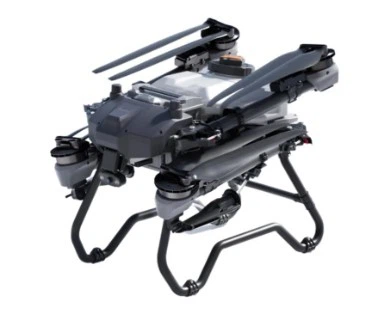
First off, let’s cut the crap – I’ve seen so many folks panic when their drone’s screen pops up a “software update available” notification at the worst time, like when they’re 2 miles out tracking a deer herd for a land management client. Or worse, they skip it, then the camera glitches mid-inspection of a fence line, and they’re kicking themselves. Upgrading software on these little rigs isn’t rocket science, but if you mess it up, you can turn a $800 exploration drone into a very fancy paperweight. And since we work with small-scale farmers, wildlife researchers, and even people doing urban construction checks, I’ve walked so many of you through this step-by-step – so let’s make this as straightforward as possible.
First, let’s get one thing clear: this isn’t the same as updating your iPhone or your laptop. These are small, specialized drones – our models, like the Scout X2 or Explorer Mini, have tiny computing chips, no fancy app background, and they rely on software that’s tuned specifically for their monitoring and exploration jobs. Upgrades usually fix three main things: buggy flight controls (like that annoying drift when you’re taking steady thermal shots), better camera resolution (so you don’t miss a crop disease spot), or longer battery life tweaks. We push updates 2-3 times a year, usually, so if your drone’s over 6 months old, there’s almost definitely something worth installing.
Let’s start with the pre-upgrade stuff – this is the part most people skip, and it’s the part that saves you from 90% of headaches. First, you need to make sure you’ve got the right update file. I can’t tell you how many people DM’d me last year saying they downloaded the wrong update from some random forum, and bricked their controller. Stick to two sources: either our official website’s support page, or the app that comes with your drone (we call ours DroneTrack, it’s free for all our customers). Don’t download random files from Reddit or Facebook groups – those are usually test versions that our team hasn’t vetted, and they can mess up the flight controller’s calibration.
Next, prep your drone and gear. Grab a microSD card (wait, not the one that’s full of your last flight clips – get a fresh one, or format the old one after you’ve backed up your footage. Seriously, formatting erases everything, so plug that SD card into your laptop first, drag all your flight videos and photos over, then go ahead and format it. Empty cards work way better for software updates, because there’s less chance of a glitch mid-transfer. Then, charge your drone’s battery all the way – I mean, 100%, not 98%. If your battery dies halfway through an update, that’s when you get a useless drone. Same for your remote controller: make that fully charged too. No rushing this part. Oh, and turn off your Wi-Fi and cellular data on your phone when you connect to the drone’s controller app – those auto-updates can kick in randomly and mess with the transfer.
Now, let’s walk through two common upgrade methods, because some folks prefer the app, others like using a computer, especially if they’re in a spot with bad cell service. First, the app method, which is the easiest for most of our customers. Open up DroneTrack, plug your phone into your remote controller (use the original cable, not that random old one from your drawer – cheap cables drop connections), and turn on the controller, then power up your drone. The app should automatically detect the drone and check for updates – if there’s one available, it’ll pop up a big button that says “Install Update” (no sketchy “Install Now” with no details, ours shows what the update fixes: like “fixed thermal camera lag for 1080p shots” or “improved GPS lock time in wooded areas”).
Wait, here’s a pro tip: don’t fly your drone during the update. Keep it on a flat, stable surface – I usually set mine on the workshop workbench, away from metal tools or other electronics that mess with the GPS. The app will tell you how long the update takes, usually 5-10 minutes. Don’t touch anything – don’t grab the drone, don’t disconnect the cable, don’t scroll your phone. If you see a progress bar that’s stuck for more than a minute, that’s normal sometimes, but if it’s stuck for 5 minutes, you can power off the controller and drone, try again – just make sure you didn’t skip the pre-upgrade prep.
If you’re off-grid, or your app won’t connect, that’s where the manual file method comes in. Go to our support page on your laptop, download the correct update file for your specific drone model (important: don’t download the Scout X2 file for your Explorer Mini, that’s a one-way ticket to a bricked drone). Save the file to your freshly formatted microSD card – make sure it’s in the root folder, not in a subfolder. Most drones look for update files named something like “firmware.bin” so don’t rename it unless the instructions say to. Eject the SD card safely from your laptop, then plug it into your drone’s SD slot (the one that’s for flight data, not the controller). Power on the drone first, then the controller – your remote should pop up a notification saying “New firmware detected, install?” Hit yes, and wait 8-12 minutes this time, since it’s a manual transfer. Again, leave it alone.
Now, the post-upgrade check – this is what separates people who actually get the benefits of the update from those who just install and fly off. After the update finishes, the drone will usually restart on its own. Don’t panic if it takes a minute or two, that’s normal. Once it’s back on, do a quick pre-flight check like you normally would: check the GPS lock (should say 10 or more satellites), test the camera by snapping a test photo, check the flight controls – move the left stick up and down, right left and right, make sure it responds smoothly. We always recommend a 5-minute low-altitude test flight in an open area, no obstacles, to make sure everything is working. Last year, a farmer from Iowa installed an update, skipped the test flight, and then when he was 30 feet up, the camera tilted wrong – turns out the update had a tiny calibration glitch, and catching that in a test flight saved him from crashing his drone into a row of corn.
Wait, let’s talk about common mistakes we see all the time, just to save you the trouble. First, updating during a cold flight – if your drone’s been sitting in 20-degree weather for an hour, let it warm up for 10 minutes before updating. The cold can mess with the battery and the chip’s ability to process the update. Second, not backing up your data – like that Iowa farmer who lost all his corn field inspection videos because he formatted his SD card without moving them first. Third, rushing the update. I get it, you’ve got a job to do, you want to fly. But if you rush, you’ll end up redoing the update, which wastes more time. Fourth, ignoring the update notifications. A lot of our customers say “my drone works fine, why update?” but last summer, we pushed an update that fixed a GPS drift issue that was making our customers’ drones wander into neighbor’s fields – so skipping that would’ve caused a lot of headaches.
Now, for the folks who have older drones that don’t support the app method – we’ve got you covered. If your drone is from before 2021, it still uses the manual SD card method, and we keep all those old update files on our support page for free, no login required. Just shoot us a message (we’ll get to that part later) if you can’t find the file for your model, we’ll send it straight over.
One last thing: what if something goes wrong? Like, the update gets interrupted, and your drone won’t turn on, or the controller shows an error message. Don’t throw it away. That’s usually a quick fix. First, try reinstalling the update again – sometimes the file just didn’t transfer right, especially if you used an old SD card. If that doesn’t work, plug into our support chat (we’ve got live chat 7 days a week for all our customers), and we’ll walk you through a “force update” method, where you hold a button on the flight controller while powering on, to reset the firmware. We’ve only had a handful of drones that needed replacement, and that was usually because someone used a random update file from the internet.
At the end of the day, upgrading your drone’s software is one of the easiest, cheapest ways to get more out of your monitoring and exploration drone. It’s not as scary as it sounds, but you do have to take it seriously – this is the software that keeps your drone in the air and your camera taking clear shots for your clients. If you’ve never done it before, grab a friend who’s done it, or send us a message, we’re here to help.

If you’re looking to upgrade your current drone, or pick up a new one with the latest software pre-installed for your exploration or monitoring needs, get in touch with our team to discuss your requirements. We work with small businesses, researchers, and land managers to make sure their drones are set up exactly for their jobs, and we’re always here to walk you through every step, including software updates. Don’t let a glitchy drone hold you back – let’s get your rig flying at its best.
Inspection Drone References:
- Drone System Firmware Update Best Practices, International Drone Association, 2022
- Small Unmanned Aerial Vehicle (SUAV) Software Upgrade Protocols, Journal of Unmanned Vehicle Systems, 2021
- Pre-Flight Preparation Guidelines for Small Monitoring Drones, Federal Aviation Administration (FAA), 2023
Shandong Lesong Drone Technology Co., Ltd.
As one of the most professional small monitoring andexploration drone manufacturers in China, our products have good reputation in the market. Please rest assured to wholesale high quality small monitoring andexploration drone for sale here from our factory. Good service and punctual delivery are available.
Address: Yuncheng County, Heze City, Shandong Province
E-mail: Ella36988@163.com
WebSite: https://www.china-uavfactory.com/
